
Start with a clean profile, then tune one layer at a time
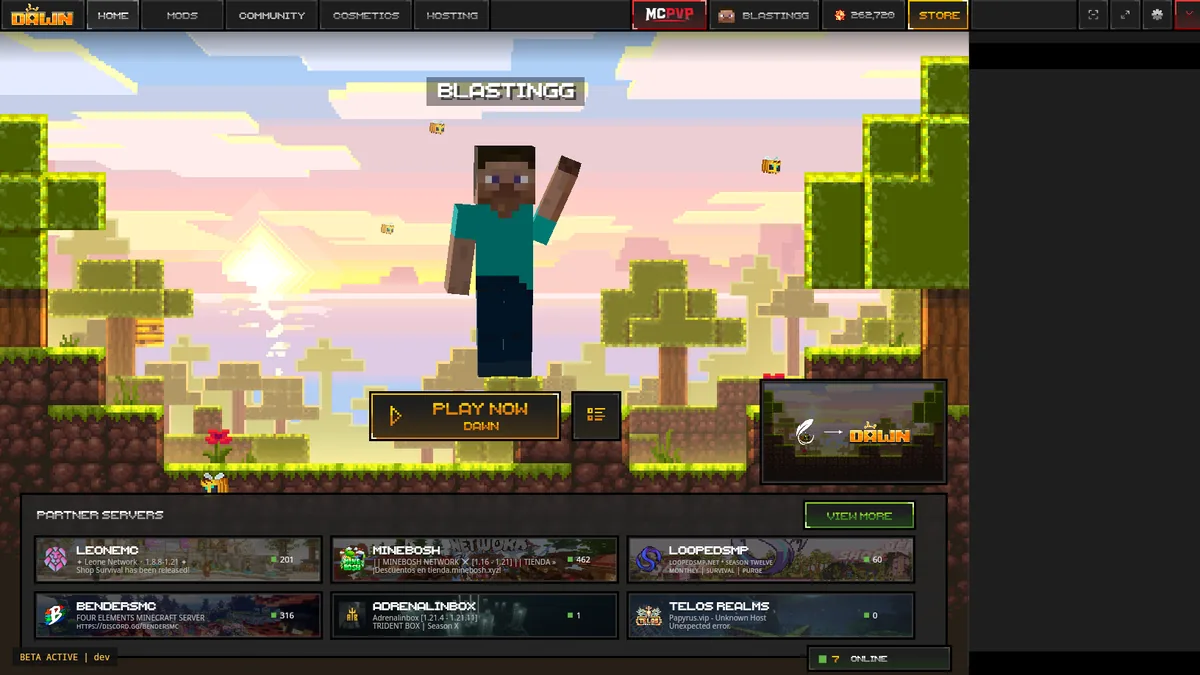
The best Feather Client settings and mods workflow is not a universal preset. Open the current Dawn path, select the Minecraft profile you really use, launch it once without extra changes, and record the baseline. Then adjust video performance, HUD layout, controls, Fabric mods, and shaders as separate layers. If the game becomes slow or unstable, you can undo the last layer instead of reinstalling everything.
Feather remains the search phrase many players use, while the current first-party route points to Dawn. The launcher, Minecraft version, Fabric Loader, individual mod, and shader pack each have their own compatibility rules. Treat a settings guide as a repeatable test plan, not as a promise that one FPS number or one PvP preset works on every computer.
Put each setting in the right layer
Many Feather Client performance problems come from changing the wrong layer. Use this boundary check before copying a preset or downloading another mod.
| Layer | What it controls | Good first check | Common mistake |
|---|---|---|---|
| Dawn profile | Instance, account path, Minecraft version, and game directory | Launch the exact profile you will play | Editing one profile and launching another |
| Minecraft video | Render distance, particles, entity effects, clouds, and frame pacing | Lower expensive effects one at a time | Changing every option before recording a baseline |
| HUD and controls | Module visibility, keybinds, scale, location, and mouse feel | Make the information you need easy to read | Copying a competitive preset without testing comfort |
| Fabric mods | Third-party features and their dependencies | Match the exact game and loader versions | Putting every JAR in a global folder |
| Shaders | Lighting and rendering effects from a shader pack | Test the clean profile and renderer first | Blaming the launcher for a shader or driver issue |
1. Build a clean Feather/Dawn settings baseline
Before looking for the best Feather Client settings, choose the profile that will actually be used. Write down the Minecraft version, loader, instance name, display resolution, and whether shaders or extra mods are active. Launch that profile once with a simple world or a familiar server. This gives you a comparison point for FPS, frame-time feel, input delay, and visual problems.
A clean baseline also protects saves and configuration. Back up worlds, resource packs, screenshots, keybinds, and settings before moving files. Do not import an unknown profile archive, executable, script, or account token just because its filename contains Feather or Dawn.
Select one active profile
Use the profile you will press Play on. A setting changed in a different instance will not explain what you see in the active one.
Record the baseline
Note the approximate FPS range, visible stutter, render distance, resolution, and whether the clean profile reaches the menu and world normally.
Change one layer
Adjust a small group of related options, relaunch, and compare. Keep a short note so a bad change can be reversed.
2. Tune FPS and frame pacing before visual extras
There is no safe universal FPS setting because hardware, resolution, Minecraft version, world complexity, server activity, and mods all change the result. Start with the options that reduce work in busy scenes: view distance, simulation distance, particles, clouds, entity shadows, and other effects that you can compare without changing the whole profile.
If the frame counter looks high but the game feels uneven, watch for frame-time spikes rather than chasing a larger headline number. Close background workloads, use a stable frame cap when appropriate, and test the same route or world after each change. A lower but consistent frame rate can feel better than a fluctuating maximum.
- Test the same scene, camera direction, and render distance when comparing two settings.
- Change view and simulation distance separately; they affect different kinds of work.
- Reduce particles, clouds, and entity effects before removing information needed for play.
- Keep graphics-driver and operating-system changes separate from in-game changes so the cause stays visible.
- If a laptop is hot or power-limited, check the system mode before blaming a client preset.
3. Make HUD and PvP settings readable, not merely popular
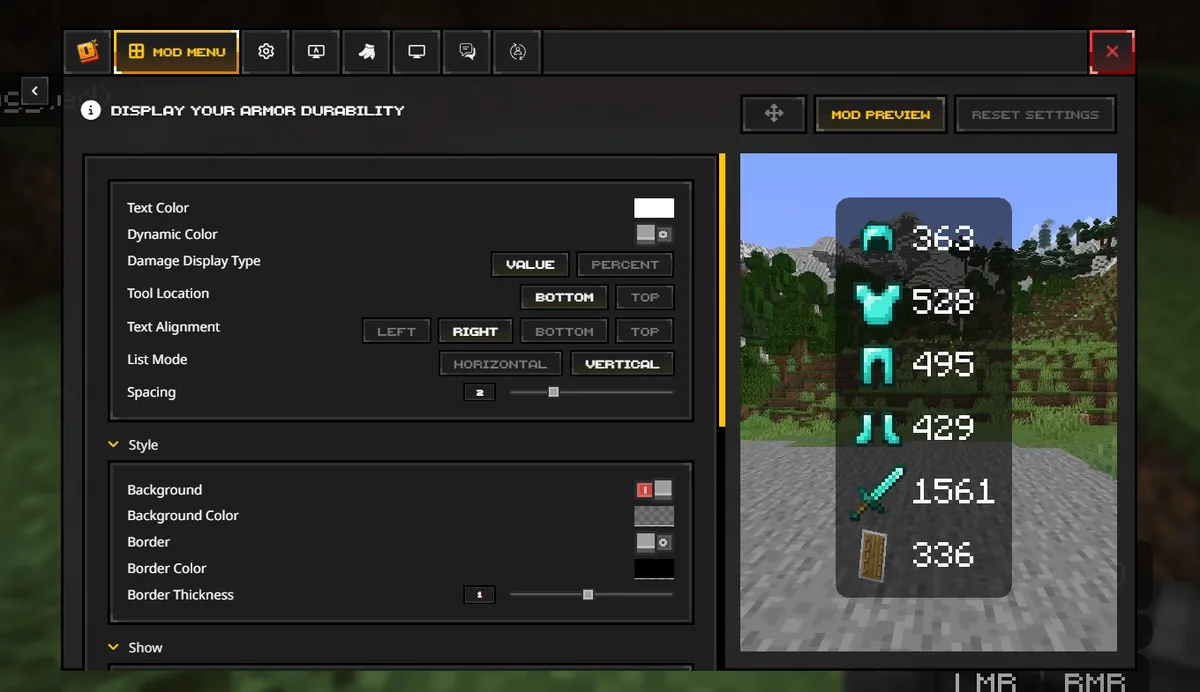
A PvP setup should make the information you need easy to see without covering the crosshair or hiding the environment. Begin with a small HUD: health or armor information you genuinely use, a compact status area, and key indicators placed where your eyes naturally return. Move one element at a time and test it in the same practice situation.
Keybinds and sensitivity are personal settings rather than universal performance fixes. Keep a backup of the old values, change only one input group, and test movement, inventory, block placement, and combat separately. If a setting is visually attractive but makes the screen harder to read, it is not an improvement for your use case.
Choose the information
Keep only the HUD modules that answer a real question during play. Extra overlays increase clutter and can make troubleshooting harder.
Set the position and scale
Place critical indicators near, but not over, the center of attention. Check the layout at the resolution and UI scale you normally use.
Test input separately
Change sensitivity or keybinds in a controlled session, then restore the backup if movement or inventory work feels worse.
4. Keep Fabric mods and shaders outside the core settings test
Fabric mods are not interchangeable with built-in Dawn modules, and a shader pack is not a mod JAR. When a feature requires Fabric, match the Minecraft version, Fabric Loader, Fabric API, dependency versions, and the author's release notes for the active profile. Add one small group, launch, and keep the log if something fails.
Shaders deserve their own test. Confirm the renderer and shader loader first, keep the pack in the profile's shaderpacks folder, and compare a clean scene before changing several visual settings. For folder details, use the Feather Client mods folder guide and the shader setup guide rather than assuming every profile uses the same directory.
- Do not place a launcher installer, shader ZIP, resource pack, world, or schematic in the
modsfolder. - Keep a known-good profile so a new mod or shader can be removed without losing the baseline.
- Check the exact Minecraft and loader versions before treating a crash as a performance problem.
- Use the mods compatibility guide when the failure begins after adding a JAR.
5. Compare settings without breaking the profile
Treat a settings change like a small experiment. Keep the profile name, world or server, resolution, and test route constant. Record what changed, whether the issue was low FPS, stutter, missing HUD, input discomfort, a crash, or a shader error, and then revert the last change when the result is worse.
The useful outcome is not a screenshot of a preset; it is a configuration you can reproduce. If you share a settings list, include the Minecraft version, loader, active mods, shader pack, resolution, and whether the test used a local world or a server. Without that context, another player's FPS or HUD values are only a starting hypothesis.
6. Recover when a settings change causes lag or a crash
First decide which layer changed last. If the clean profile still launches, remove or disable the newest mod, shader, overlay, or visual change before reinstalling the launcher. If the profile no longer starts, preserve the log and backup, create a temporary clean profile, and compare the result. This separates a configuration problem from a launcher, runtime, driver, account, or server problem.
For broader launch failures, continue with the Feather Client launch troubleshooting guide. It is safer to restore one known-good folder or option than to download an unverified replacement executable or disable system protection.
Undo the last change
Disable the newest setting group, mod, shader, or overlay and repeat the same test.
Read the first useful error
Keep the log and identify the first repeatable failure instead of reacting to every follow-on warning.
Use a clean comparison
A temporary vanilla or minimal Fabric profile can show whether the problem belongs to the settings layer or the wider installation.
Feather Client settings FAQ
These answers keep current Dawn, Minecraft, Fabric, mod, and shader settings separate.
What are the best Feather Client settings and mods?
There is no universal best preset. Start with a clean Dawn profile, choose the exact Minecraft version, tune FPS and HUD options in small groups, then add only compatible Fabric mods or shaders that serve your goal. Record the working baseline so you can undo a change.
Will my old Feather settings automatically appear in Dawn?
Do not assume every keybind, profile, mod, cosmetic, or configuration file transfers automatically. Back up legitimate worlds and settings, then verify the active Dawn profile. Avoid importing unknown executables, scripts, account tokens, or complete third-party archives.
Should I install shaders before changing FPS settings?
Usually no. Test the clean profile first, tune basic video options, then add the shader loader and one shader pack as a separate experiment. That makes it clear whether a renderer or pack caused the performance change.
Can I put Feather Client mods in the same folder as shaders?
No. Mod JARs belong to the active profile's mods folder, while shader packs use the shaderpacks folder and a compatible shader loader. Resource packs, worlds, and schematics have different locations too.
Why did my FPS drop after adding a HUD or mod?
The newest change may add rendering work, conflict with a dependency, target another Minecraft version, or run in a different profile than expected. Disable the last change, repeat the same scene, and inspect the log before changing unrelated system settings.