
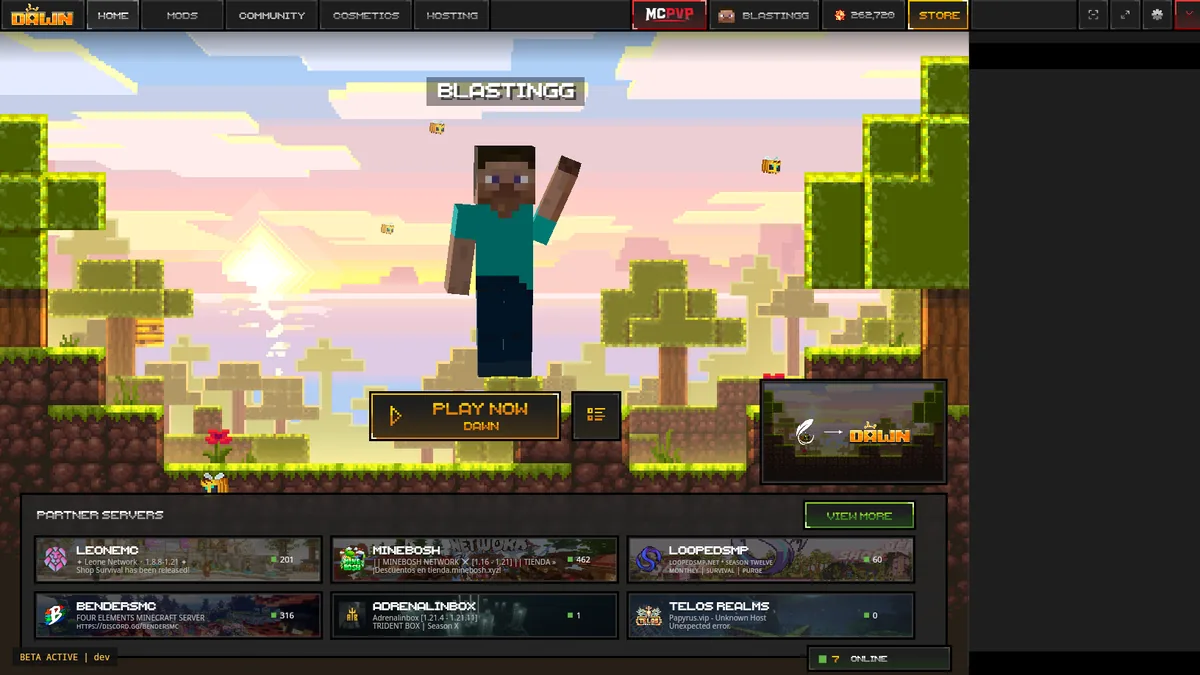
How to download Feather Client through the official Dawn route
To download Feather Client today, open the current Feather website or go to Dawn’s official download section. The Feather first-party page says the product was acquired by InPvP and users are being moved to Dawn. Choose the platform shown by Dawn: Windows, macOS Apple Silicon, Linux Flatpak, or Linux Tarball.
Use the official page as the download destination because the live site does not expose a stable public installer URL or a reliable version string in the checked HTML. Do not replace that route with a guessed CDN link, an old Feather installer, a cracked mirror, or a third-party page requesting credentials.
Which Feather download do you need?
Use the file's job, not only the Feather name, to choose correctly.
| Option | Use it for | Do not use it for |
|---|---|---|
| Dawn Windows launcher | Normal Windows installation, profiles, built-in client modules | A manual Fabric library install |
| Dawn macOS launcher | Apple Silicon Mac installation | Windows or an unverified Intel build |
| Standalone Fabric JAR | A compatible advanced Fabric workflow | Replacing the full Dawn desktop launcher |
| Dawn Linux Flatpak / Tarball | Linux installation from the official platform selector | A guessed CDN file or an old Feather mirror |
1. Check your platform before downloading
The “how to download Feather Client” path starts with the platform selector, not with a filename copied from a search result. On Windows, confirm that you are using a supported 64-bit system and have enough storage for Minecraft profiles, Java runtimes, modpacks, logs, and screenshots. On Mac, open Apple menu > About This Mac and check the chip. The official Dawn page currently identifies its macOS choice as Apple Silicon, so do not assume an Intel Mac download exists unless Dawn explicitly adds one.
A profile can need much more disk space than the launcher itself. Leave several gigabytes free, especially when you plan to use Modrinth packs, multiple Minecraft versions, or large resource packs.
- Use the desktop launcher for the normal client experience.
- Use the Fabric JAR only when a loader guide specifically calls for it.
- Do not use a Windows executable on macOS or a JAR as a replacement for the desktop app.
2. Download from the official source and verify the file
For a Feather Client download, keep Dawn’s official page open while you choose Windows, macOS Apple Silicon, Linux Flatpak, or Linux Tarball. Click the platform button on this page and wait for the 15-second source check. Windows and macOS selections open Dawn's official download section. The address bar should show dawn.gg before you choose a platform. If a button opens an unrelated file host, advertisement, or repository, close it.
After the download begins, check that the filename and file type match your platform. Browser warnings are not all equal: a normal warning may ask whether you intended to download an installer, while a page that demands a browser extension, notification permission, survey, or password is not part of the documented first-party flow.
3. Install, sign in, and create a clean profile
Run the installer from your browser's download list or Downloads folder. Follow the operating-system prompts, then open Dawn. Sign in through the Microsoft authentication flow using the account that owns the relevant Minecraft edition. Never type your Microsoft password into a third-party download page.
Create a new profile and choose a Minecraft version that the current launcher actually offers. Launch that profile once before changing anything. A successful vanilla launch confirms that the account, runtime, game files, and graphics stack work before mods add more variables.
Open the downloaded installer
Confirm the source and platform, then follow the normal Windows or macOS prompts.
Complete Microsoft sign-in
Use the legitimate account flow; the launcher does not replace ownership of Minecraft.
Create one test profile
Select an offered Minecraft version and launch it unchanged.
Close Minecraft normally
This lets the profile create its folders and configuration before you add mods.
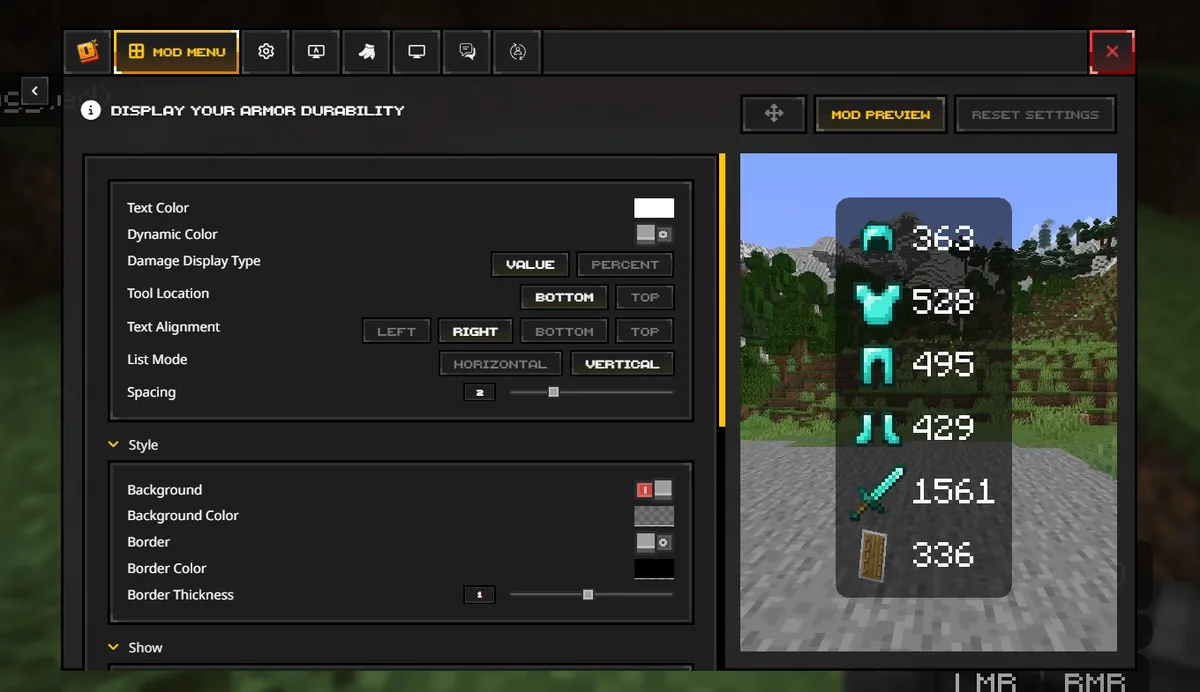
4. Add Fabric mods without breaking the profile
Compatibility depends on the exact Minecraft profile, Fabric Loader, Fabric API, and mod build. The live Dawn page checked on August 13, 2026 did not expose a stable public application version string, so use the official platform selector and verify the profile version separately. A filename that combines several version numbers is not proof of compatibility.
Add one or a small group of related mods at a time. When a launch fails, read the error for a missing dependency, wrong Minecraft version, duplicate library, or incompatible loader. Remove the last change and retry. This method is slower than copying an entire profile archive, but it makes the cause visible and avoids importing unknown account or server data.
- Back up worlds, screenshots, and profile configuration before major changes.
- Download mods from the author, Modrinth, or another clearly identified first-party project page.
- Do not copy random Feather profile ZIP files that can contain unwanted configuration or executable code.
5. Verify the completed Feather Client download
After you learn how to download Feather Client, verify the installed launcher and clean profile before adding mods or copying old settings. After you know how to download Feather Client through Dawn, verify the result before treating the setup as finished. Reopen the launcher from the installed application rather than the browser download, confirm that the expected Microsoft account is selected, and check that the clean test profile still starts after a restart. This catches incomplete installations, temporary browser launches, and profiles that depend on a file left in Downloads.
Record the launcher source, the Minecraft profile version, the loader, and the first group of mods you add. A short setup note is useful when a later update fails because it shows what changed. Keep the installer only if you have a clear reason; the live official source is more reliable for future installs than an unlabeled local copy.
If the launcher opens a different profile, loses a setting, or reports a missing runtime, solve that base issue before adding more files. A successful Feather Client download workflow ends with a repeatable launch, a backed-up profile, and a known first-party route for future updates.
- Restart the launcher and repeat one clean game launch.
- Confirm the profile directory and Minecraft version you intended to use.
- Write down loader and dependency versions before adding more mods.
- Keep worlds and personal configuration in a separate backup.
How to download Feather Client FAQ
Direct answers about the official route, platforms, installation, and safe source checks.
How do I download Feather Client now?
Open feathermc.com or Dawn’s official download section and choose the platform shown there. The current Feather route points users to Dawn, so do not search for an unverified separate installer.
Can I download Feather Client for Windows, Mac, or Linux?
The checked Dawn page listed Windows, macOS Apple Silicon, Linux Flatpak, and Linux Tarball options. Confirm the platform selector again before installing because live download choices can change.
Why does Feather Client download Dawn?
Feather’s official page says the product was acquired by InPvP and users are being moved to Dawn. The Dawn page is therefore the current official download destination connected to Feather.
Is it safe to download Feather Client?
Use the official Feather-to-Dawn source chain, verify the final domain and file type, keep operating-system protections enabled, and never enter a Microsoft password or token on a third-party download page.
Do I put Feather Client in the mods folder?
No. The desktop launcher is separate from a profile’s mods folder. Only compatible mod JAR files or a documented standalone Fabric file belong in a modded profile workflow.