
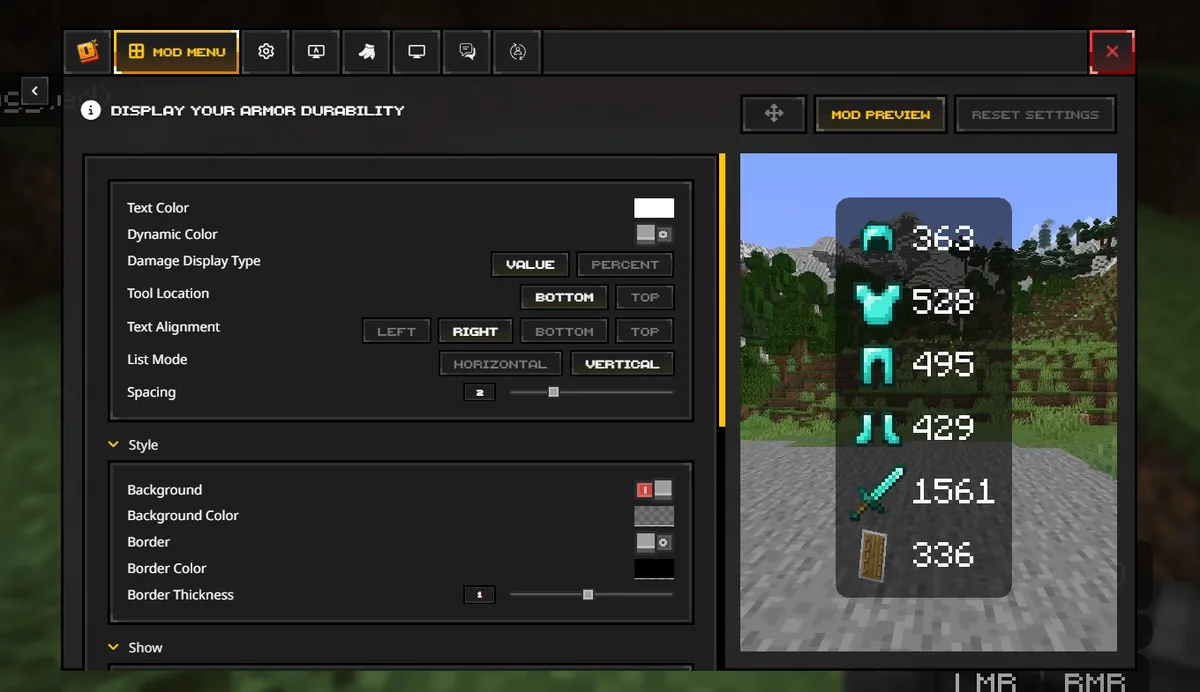
How to add Feather Client mods safely
To add Feather Client mods today, start with the current Dawn client and a specific Minecraft profile. Choose the exact game version, confirm that the profile uses Fabric, install the matching Fabric Loader and required dependencies, then place compatible mod JAR files in that profile's mods folder. Launch the clean profile first and add one small group of mods at a time. This makes a broken dependency or conflicting build much easier to identify.
Do not treat every file mentioning Feather as an official mod or download. Dawn's application version was shown as v0.2.0.338 on 1 August 2026; Minecraft, Fabric Loader, Fabric API, libraries, and individual mods have separate version numbers. The official Dawn download page remains the safest stable CTA because desktop destinations can change. This page explains the folder and compatibility decisions without hosting installers or recommending cracked clients.
Put each file in the right layer
Most Feather Client mod problems are folder or version problems rather than a mysterious launcher failure. Use this quick boundary check before moving a file.
| What you are adding | Correct location | What to verify | Common mistake |
|---|---|---|---|
| Dawn client | Official installer or current app flow | Publisher, platform, account path | Calling the launcher itself a mod |
| Fabric Loader or API | The selected profile's loader and dependency set | Exact Minecraft version and loader family | Mixing Fabric and Forge instructions |
| Mod JAR | That profile's mods folder | Game version, loader, dependencies, author notes | Using a global or different profile folder |
| Resource pack or shader | resourcepacks or shaderpacks | Pack format and supported renderer | Dropping a ZIP or shader into mods |
| World or schematic | saves or the tool's data folder | Whether it is data rather than executable code | Treating a map or schematic as a mod JAR |
Define the profile before downloading a mod
A mod is compatible with a profile, not with the word Feather by itself. Write down four values before you search: the Minecraft version, the loader, the mod name and release, and every dependency named by the author. A request such as “Feather Client mods for 1.21” is still incomplete if the profile uses a different patch release, an older Fabric Loader, or a dependency that the mod no longer supports.
Separating profiles is useful for a legacy server, a performance setup, and an experimental collection. A clean profile gives you a known-good baseline. If the profile launches without mods, you know that a later crash belongs to a mod, dependency, configuration, or resource-pack change rather than to the original Dawn installation.
Record the exact Minecraft profile
Open the profile list and copy the full game version, not only a broad label such as 1.21.x. The patch number can determine which mod build is valid.
Confirm the loader family
Check that the profile is using Fabric when the mod page says Fabric. A Forge or NeoForge build is not interchangeable just because the mod has the same name.
Read the dependency list
Look for Fabric API, library mods, Java requirements, client-only limits, and required configuration files before copying the main JAR.
Open the right Feather Client and Dawn profile
The public Feather path now leads to Dawn. Use the official Dawn site or its download section, confirm the domain and platform, and complete sign-in only inside the legitimate account flow. Do not use a mirror that asks for a Microsoft password, session token, browser extension, antivirus exclusion, or a password-protected archive.
After installation, create or select the profile that will own the mods. The same computer can contain several Minecraft instances, so a file copied into a different instance may appear to vanish even when the JAR is valid. If Dawn exposes a profile-specific folder button, use it. Otherwise open the folder shown by that profile's installation settings and verify that the path changes when you switch profiles.
- Back up worlds, screenshots, keybinds, and configuration before changing a working profile.
- Launch the clean profile once after the current Dawn update and before adding third-party files.
- Keep the official download page as the CTA when a platform URL is temporary or signed.
- Never download a so-called Feather mod that promises paid cosmetics, account bypasses, or every premium feature.
Add Fabric mods one small group at a time
Fabric is a loader ecosystem, not a synonym for the Dawn launcher. The standalone JAR reached through the first-party Feather route was observed as a Java archive of 21,493 bytes with a 13 July 2026 Last-Modified header, but that file is not a universal answer for every Minecraft profile. Read the current instructions for the selected version and use the profile's own loader configuration.
For reference, the official Fabric installation guidance explains the normal player workflow. Download a mod from the author's recognized project page, check the file name and release notes, and copy only the compatible mod JAR into the selected mods folder. Add the dependency at the same time only when the author requires it; do not fill the folder with unrelated libraries just because they look familiar.
Open the selected profile folder
Confirm the path belongs to the profile and that the folder is named
mods. Create it only if the loader documentation says the profile expects it.Copy the main JAR and required dependencies
Keep the original file name, avoid duplicate versions, and do not rename a JAR to hide its purpose.
Launch and read the first error
If the game stops, record the first reported mod or dependency. Do not delete the whole folder before saving the log.
Keep mods, resource packs, shaders, and worlds separate
Searchers often use “mods” as a broad word for every Minecraft add-on. The file type and destination still matter. Executable mod JARs belong in mods; resource packs belong in resourcepacks; shader packs belong in shaderpacks when the profile supports them; worlds belong in saves; schematic or map data belongs in the folder documented by the relevant tool. A ZIP file is not automatically a mod, and a PNG or schematic is not executable code.
Separating these folders also makes a rollback safe. If a new visual pack causes a rendering issue, remove or rename that pack without touching the loader. If a mod causes a crash, move only the newest JAR to a temporary quarantine folder and retest. Keep a short inventory with the file name, version, source, and date so you can rebuild the profile rather than guessing.
- Use the profile-specific
modsfolder for mod JARs. - Do not place a resource-pack ZIP in
modsjust because the download page calls it a pack. - Treat shaders as renderer-sensitive and test them separately from gameplay mods.
- Back up worlds before testing anything that changes generation, rendering, or save behavior.
Check compatibility before the first modded launch
The useful compatibility question is not “Is this a Feather Client mod?” It is “Does this exact build support my Minecraft version, loader, environment, and dependencies?” Read the author page for client-only or server-required notes, minimum loader versions, Java requirements, and known conflicts. A mod can be legitimate and still be wrong for your profile.
Avoid updating every file at once. When a profile works, change one variable: one mod, one dependency, or one configuration group. If a new release breaks the launch, restore the previous file and record the result. This small change log is faster than reinstalling Dawn and losing the evidence that identifies the conflict.
Compare Minecraft versions exactly
Match the mod's supported version to the profile, including patch-level differences when the author lists them.
Compare loader and API requirements
Install only the Fabric Loader and API versions required by the project or mod pack documentation.
Check client/server scope
A client-only HUD mod and a server-required gameplay mod have different installation and multiplayer expectations.
Diagnose a crash, missing mod, or duplicate JAR
If a Feather Client mod does not appear, check the active profile first. Confirm that the file is in the profile's mods folder, that the file extension is really .jar, that the loader is Fabric, and that the mod is not disabled by a profile setting. A missing mod is often a wrong path or wrong loader rather than a damaged file.
If the game crashes, use a binary-search style rollback. Move half of the newly added mods out, test again, and repeat until the failing group is small. Then inspect the first error named in the log for a missing dependency, duplicate library, incompatible Minecraft version, Java issue, or mixin conflict. The launch troubleshooting guide covers clean-profile, log, graphics, account, and network checks when the failure is broader than a mod.
- Save the crash report and latest log before deleting or reinstalling anything.
- Remove duplicate versions of the same library or mod; two JARs can load conflicting classes.
- Test the profile without shaders and resource packs when the error is visual or renderer-related.
- Use the Minecraft versions guide when several version numbers are being confused.
Feather Client mods FAQ
Short answers for adding Fabric mods, separating folders, and finding the first compatibility failure.
How do I add mods to Feather Client?
Use the current Dawn profile, confirm the Minecraft version and Fabric loader, then copy compatible mod JARs and their required dependencies into that profile's mods folder. Launch a clean profile first and add files in small groups.
Does Dawn use the same mods folder as Feather Client?
The folder is profile-specific, so do not assume that a historic Feather path is the active Dawn path. Open the selected profile's folder, confirm the loader, and verify that the JAR appears in the profile you actually launch.
Can I put shaders or resource packs in the mods folder?
No. Resource packs and shader packs use different folders and may require different renderer support. A ZIP or shader file is not automatically a Fabric mod JAR.
Why is a Feather Client mod missing from the game?
Check the active profile, exact folder, file extension, loader family, Minecraft version, and required dependencies. A wrong profile or Forge-only build can look like a missing mod.