
How to install a modpack on Feather Client
The practical answer to how to install a modpack on Feather Client is to use the current Dawn path and keep the pack inside a dedicated Minecraft profile. Dawn's official Modrinth workflow lets you open Mods, switch to Modpacks, choose a pack, and press Install. Dawn creates a profile with the pack's Minecraft version, loader, and mod list. Open that profile and launch it before adding personal files. If you already have a Modrinth .mrpack, use Import on the Profiles page or drag the file into Dawn. The launcher reads the pack metadata and downloads the listed files instead of asking you to copy every JAR by hand.
A modpack is a bundle with a defined environment, not a loose collection of files. Match the pack's Minecraft release and loader, keep a clean profile for comparison, and save the original file and log when a launch fails. The word Feather still appears in searches, but the first-party route now points to Dawn. This article explains the repeatable install and recovery decisions without hosting a consumer installer or recommending cracked launchers.
Choose the right modpack installation path
The best method depends on what you already have. Use Dawn's built-in library when the pack is listed, and use a local import when you have a verified pack file.
| What you have | Recommended path | What it creates | Main check |
|---|---|---|---|
| A pack listed in Dawn | Mods > Modpacks > Install | A new profile with version and loader | Read the pack description and required release |
A Modrinth .mrpack | Profiles > Import or drag the file | A profile from the pack metadata | Keep the file and confirm the source |
| A CurseForge-only archive | Find a Modrinth release or use its documented launcher | No automatic Dawn import guarantee | Do not rename or convert an archive blindly |
| An unknown ZIP or executable | Do not import it | No trusted profile | Verify publisher, format, and project page first |
1. Prepare a clean profile before installing the pack
A modpack belongs to a Minecraft instance, not to the word Feather by itself. Before you click Install, write down the Minecraft version, the pack name and release, the loader named by the pack, and the world or server you plan to use. A pack for 1.20.1 is not interchangeable with a pack for 1.21. A Fabric pack is not made compatible with Forge by changing a folder name. These boundaries prevent a successful download from becoming a confusing launch failure.
Use a new or clearly named profile for the first test. Back up worlds, screenshots, resource packs, shader packs, keybinds, and settings outside the profile directory. Do not replace a working instance with a downloaded archive.
Record the environment
Note the exact Minecraft release, operating system, available storage, Java path if the launcher exposes it, and whether the pack expects Fabric, Quilt, Forge, or another loader.
Separate personal data
Copy worlds and screenshots to a dated backup location. Keep a text list of servers, keybinds, and resource packs instead of importing an entire unknown profile.
Name the test profile
Use the pack name and version in the profile label. This makes it obvious which instance you are launching when several versions exist on one computer.
2. Install a Modrinth pack from Dawn's Modpacks tab
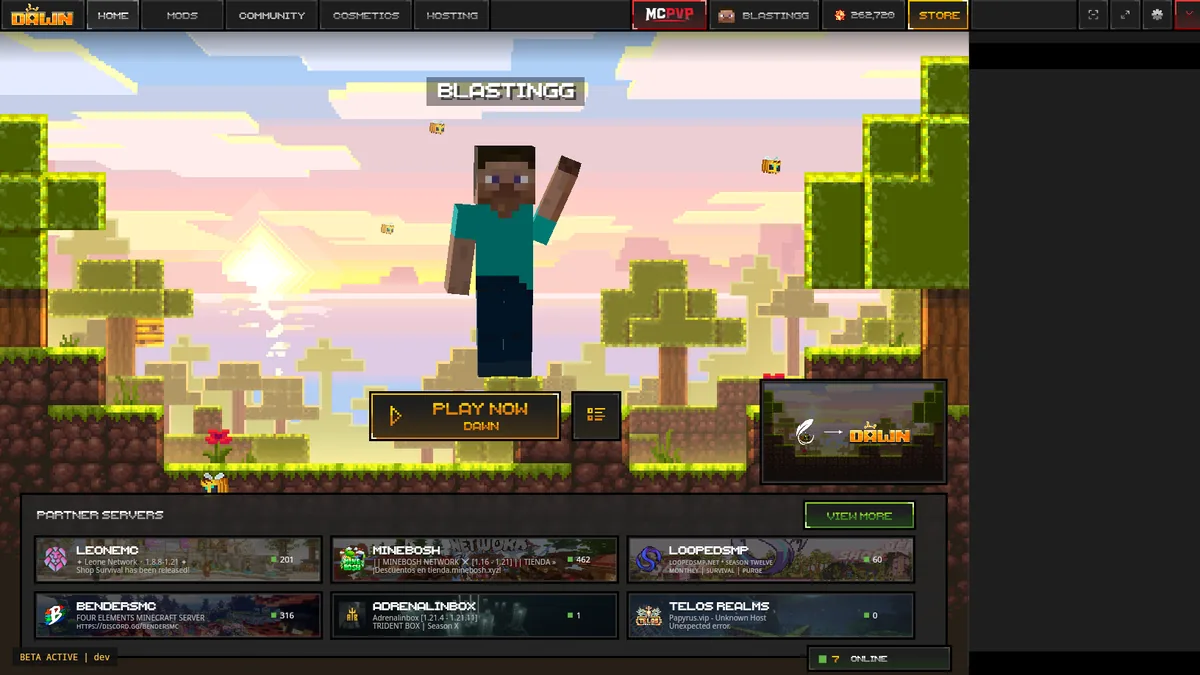
The official Dawn modpack page describes a built-in Modrinth library. Open Dawn, open the Mods area, and switch to the Modpacks tab. Search the pack by its exact name or browse the list. Read the description, supported Minecraft version, loader, dependencies, and update notes before choosing Install. A popular name can have several releases, so select the release that matches the server or guide you intend to follow.
Press Install only after the profile choice and storage check are clear. Dawn creates a separate profile, selects the pack's Minecraft version and loader, and downloads the mods listed by the pack. Open the profile details and confirm the version before pressing Play.
Open Mods and Modpacks
Use the current Dawn interface rather than a historic Feather screenshot. If the tab is missing, confirm that you are in the official launcher and that the profile area finished loading.
Read the pack record
Check the author, project host, Minecraft version, loader, required memory guidance, and whether the pack is client-only or expects a server-side installation.
Install and launch once
Let Dawn create the profile, then launch it without adding shaders, resource packs, or personal mods. Record whether the menu and a test world open normally.
3. Import a verified .mrpack file
A .mrpack is Modrinth's modpack format. It contains pack metadata, configuration files, and a list of project files that the launcher retrieves from Modrinth. It is not a normal ZIP that you should unpack into the global .minecraft folder, and it is not a replacement for the Dawn installer. Keep the original file in a dated folder so you can prove which release you tested or import it again after a reset.
In Dawn, use Import on the Profiles page and select the file, or drag the file onto the launcher when the official workflow supports it. Review the profile name, Minecraft version, loader, and requested files before confirming. If a pack is published only for CurseForge, look for a documented Modrinth release or follow the pack author's supported launcher instructions instead of renaming the archive.
Verify the file and source
Download the .mrpack from the recognized project page, keep its filename, and avoid files that ask for an executable, browser extension, password, or account token.
Import into a new profile
Choose Import, review the proposed version and loader, and select a destination with enough space for the pack, libraries, logs, and worlds.
Compare before personalizing
Launch the imported profile once. Only after a clean test should you add your own resource packs, shader packs, keybinds, or extra mods.
4. Match the loader, Minecraft version, and dependencies
A modpack can install successfully and still fail because one layer does not match. Compare the pack's Minecraft release with the profile, then compare the stated loader and loader version. Fabric, Quilt, Forge, and NeoForge use different mod ecosystems. A JAR made for one family is not fixed by placing it in the same mods folder as a pack from another family. When the pack lists Fabric API or another library, let the pack provide the requested version unless its documentation says otherwise.
Treat server requirements separately. A client pack may add HUD, rendering, or quality-of-life mods that do not belong on a server. A gameplay pack may require the server to run the same pack and exact version. Read the project page and server instructions before joining a multiplayer world. If the pack uses shaders or resource packs, keep them in their own folders and test them after the base pack works. The existing mods guide, Fabric guide, and Minecraft versions guide cover those separate boundaries.
- Match the complete Minecraft version, including the patch number shown by the pack.
- Use the loader family named by the project; do not mix Fabric and Forge instructions.
- Check dependencies and minimum Java or memory requirements before adding extra files.
- Keep client-only, server-required, resource-pack, shader, and world files in their documented locations.
- Use the pack's release notes when an update changes configuration or removes a mod.
5. Fix a modpack that crashes, stalls, or looks incomplete
Start with the smallest useful question: did the clean pack profile launch before you changed it? If yes, remove the newest personal mod, shader, resource pack, or configuration change and repeat the same test. If the clean profile never launches, save the log and crash report, check the exact version and loader, and compare the pack's requirements with the launcher profile. Do not delete the entire directory before preserving evidence.
A missing mod often means the wrong profile or a file that was copied to a global folder. A crash mentioning a missing class usually points to a dependency or loader mismatch. A black screen or sudden FPS drop can belong to a shader, resource pack, graphics driver, or renderer option rather than to the pack itself. Use a temporary clean profile to separate a pack problem from a wider Dawn or Minecraft launch problem.
- Save the latest log and crash report before reinstalling or deleting files.
- Check the active profile path, filename extension, Minecraft release, loader, and dependency list.
- Move the newest half of added files to a quarantine folder, test, and repeat until the failing file is isolated.
- Disable shaders and resource packs when the symptom is visual or renderer-related.
- If the server rejects the connection, compare the server pack and client pack versions instead of changing random settings.
Feather Client modpack FAQ
These answers cover the current Dawn path, Modrinth packs, .mrpack imports, compatibility, and recovery.
Can I install a modpack on Feather Client?
Yes. The current first-party route is Dawn. Use its Modpacks tab for a listed Modrinth pack, or import a verified .mrpack from the Profiles page. Let Dawn create a separate profile and launch it once before adding personal files.
How do I import a .mrpack in Dawn?
On the Profiles page, choose Import and select the verified .mrpack, or use the documented drag-and-drop flow. Review the Minecraft version, loader, destination, and storage needs, then launch the new profile before customizing it.
Can I install a CurseForge modpack in Dawn?
Dawn's documented built-in library is Modrinth-focused. If a pack is only on CurseForge, look for a supported Modrinth release or follow the author's documented launcher instructions. Do not rename an archive or assume a converter is safe.
Why does my Feather Client modpack crash on launch?
Check the exact Minecraft version, loader family, dependency versions, Java or memory requirements, and active profile path. Remove the newest personal change, save the log, and compare a clean pack profile before reinstalling anything.