
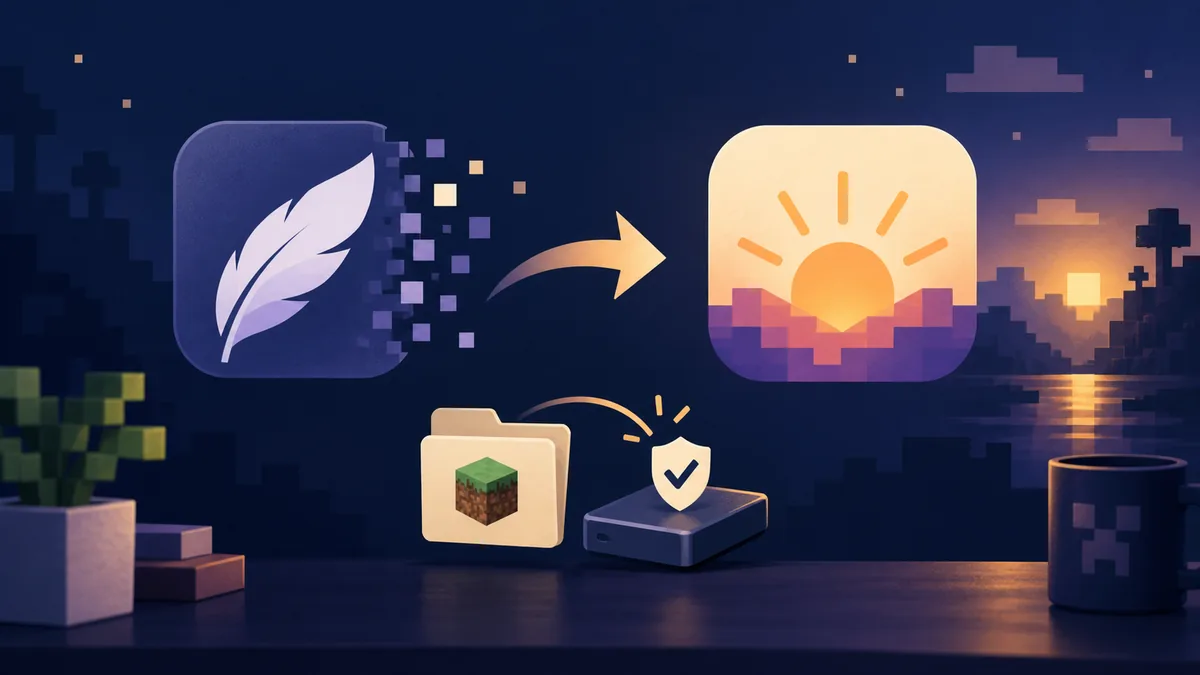
You do not normally need to uninstall Minecraft Launcher to use Dawn
The practical answer to the most common Feather Client uninstall question is no: a separate Minecraft Launcher installation can normally remain on the computer while you use the current Dawn path. Removing it is only useful when you have a genuine storage, profile, shortcut, or troubleshooting reason. Do not delete a launcher just to make two names look tidy.
What to remove and what to keep
Uninstalling a launcher is different from deleting a Minecraft game directory. Use this boundary check before confirming a cleanup dialog or moving a folder.
| Item | Remove when | Keep or back up | Why it matters |
|---|---|---|---|
| Feather/Dawn application | You no longer use that installation or it is damaged | Installer source and account notes | The application can be reinstalled; personal game data may not be easy to rebuild. |
| Minecraft Launcher | You have a separate reason to remove it | Existing profiles, saves, and sign-in information | Dawn does not automatically make the official launcher unnecessary. |
| Minecraft game directory | Only after confirming the profile is disposable | saves, screenshots, resourcepacks, logs, and settings | This directory can contain worlds and evidence needed for recovery. |
| mods folder | Only when removing a specific profile or incompatible set | A list or backup of working JARs | Deleting it can hide the real compatibility problem and erase a working setup. |
1. Decide why you want to uninstall Feather Client
Start with a specific reason: an old shortcut, a failed launch, a broken profile, low disk space, or a deliberate reset. A name change to Dawn does not require deleting Minecraft Launcher, and a mod crash does not prove that the whole launcher must be reinstalled. Record the symptom, try a clean profile or disable the newest mod or shader, and use the launch troubleshooting guide before deleting folders. Keep the decision reversible until a new profile reaches a menu or test world.
Name the problem
Record the exact symptom and the profile that shows it. A shortcut problem, an application problem, and a mod problem need different fixes.
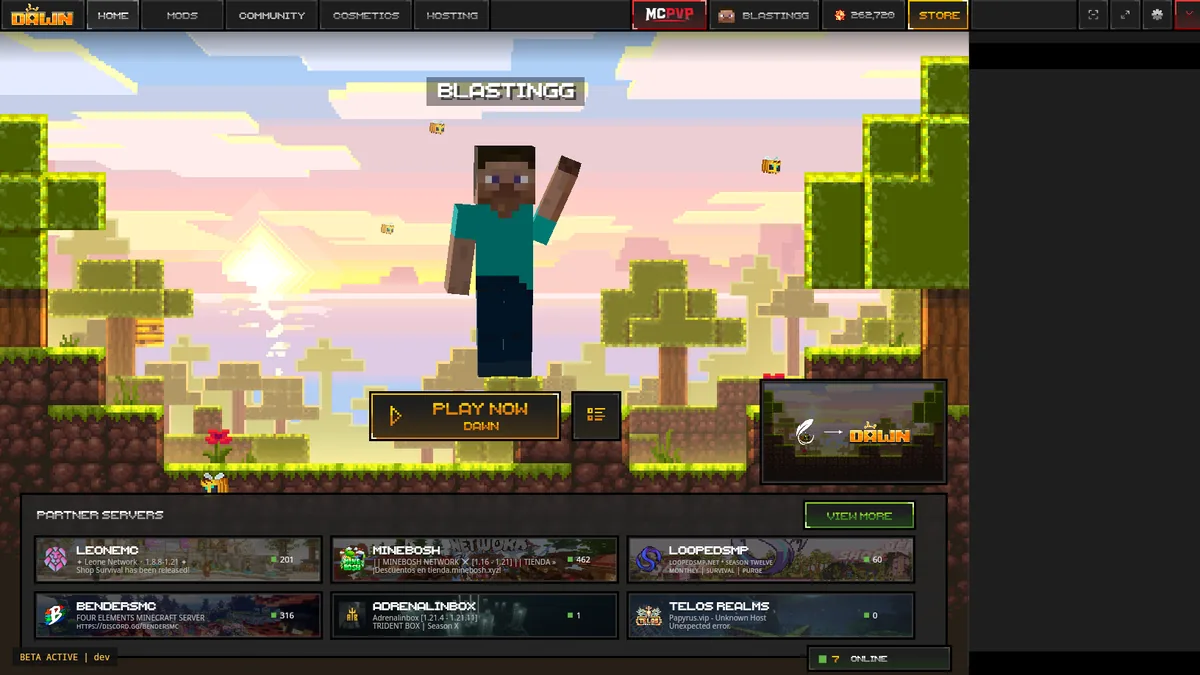
2. Back up worlds, settings, mods, and screenshots first
Back up worlds, screenshots, resource packs, shader packs, keybinds, settings, logs, and a plain-text list of working mods before removing the client or game directory. Put the copy in a dated folder outside the old installation, record the active Minecraft version, loader, profile, and game path, then open the destination to verify real files. Do not treat unknown executables, scripts, or account tokens as ordinary settings, and keep the original until a clean Dawn profile has been tested.
Record the active path
Note the profile, Minecraft version, loader, and game directory that you actually launch. Do not back up a different instance by mistake.

3. How to uninstall Feather Client on Windows
On Windows, use Settings > Apps > installed apps and remove the verified Feather or Dawn entry instead of deleting a shortcut. Afterward, do not erase %APPDATA%\.minecraft or a custom game directory: those locations may contain worlds, screenshots, logs, settings, resource packs, and mods. If no uninstall entry exists, identify the original application folder, rename it temporarily, and test the clean Dawn profile before permanent deletion. Avoid registry cleaners and downloads that ask you to weaken security.
- Use Windows installed-apps settings for the application entry when possible.
- Keep
saves, screenshots, resource packs, logs, and the active profile backup. - Do not confuse a desktop shortcut with the installed client or the Minecraft game directory.
4. How to remove Feather Client on macOS
On macOS, quit the client and its related process, then move the identified app from Applications to the Trash. Empty it only after checking the backup. The usual data path is ~/Library/Application Support/minecraft, but profiles can use custom folders, so verify the path with Finder's Go to Folder command. Keep worlds, resource packs, screenshots, logs, settings, mods, and shaderpacks; a clean reinstall should begin with a new test profile rather than deleting the whole Minecraft directory.
Quit the client
Close the launcher and the Minecraft process it started. Save logs or screenshots before closing if the uninstall is part of troubleshooting.
5. How to clean up Feather Client on Linux
On Linux, note whether the client came from Flatpak, an archive, a desktop entry, or a manually extracted folder. Remove it through the same method, and protect the active game directory first; the usual path is ~/.minecraft, but profiles may be elsewhere. Move only the verified launcher directory, update its shortcut, and never run a broad command against the home directory. For a broken profile, create a clean test directory and use the mods folder guide to distinguish profile-specific data.
6. Remove leftover files only after a clean Dawn test
Investigate leftovers only after the official Dawn route opens a clean profile and reaches a menu or test world. If that test works, move one verified old folder to a dated quarantine location instead of deleting it. Confirm that worlds, settings, and logs are in the backup, then restore only the smallest useful item if the symptom returns. Add compatible mods in small batches and keep shaders separate so the original conflict remains visible.
Launch clean
Use Dawn with no extra mods or shaders and confirm the menu, profile, and test world behave normally.
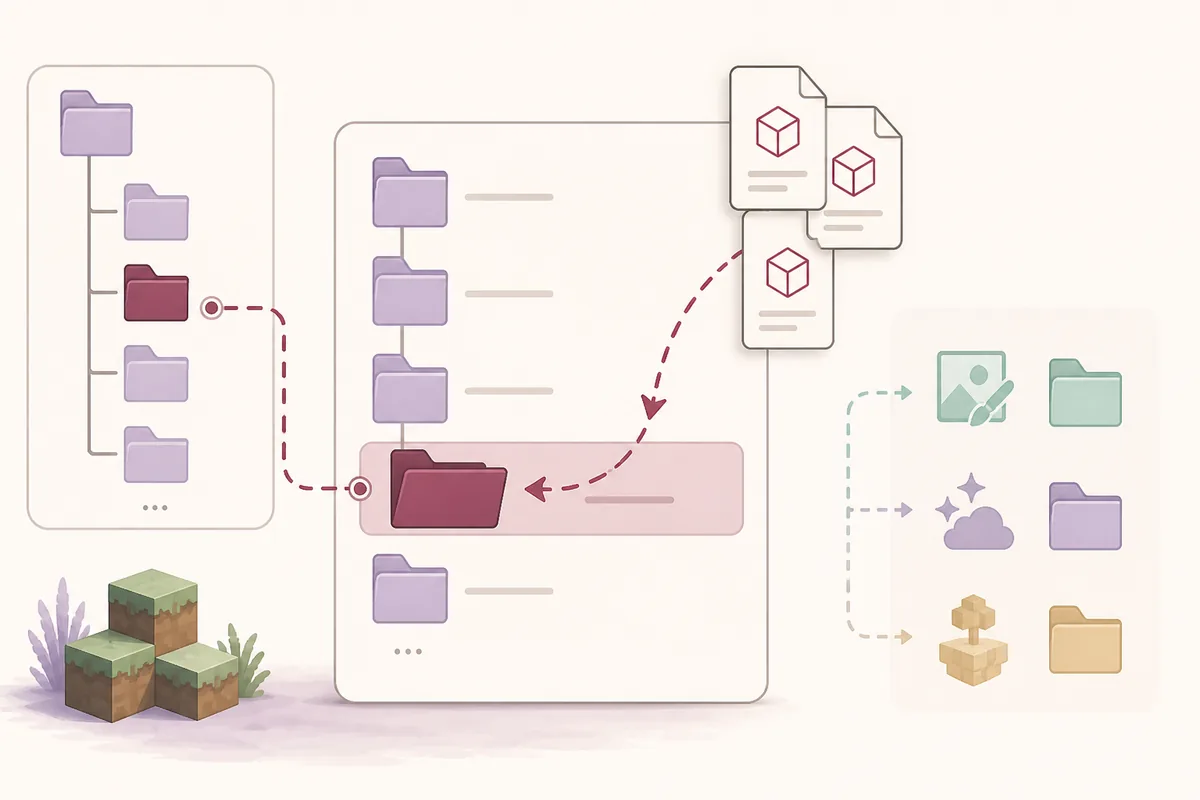
7. Reinstall without losing the reason for the failure
Reinstall only when it changes the evidence. Keep a minimal clean profile, record its first successful launch, and add settings, compatible mods, and shaders one layer at a time. Use the download guide and settings guide; use the old-version guidance instead of an unknown mirror. The client and Microsoft account remain separate, so keep sign-in actions on official pages and never share tokens.
Build the smallest working profile
Start with the current official route, the target Minecraft version, and no optional content.
8. What not to delete during a Feather-to-Dawn move
The most damaging mistakes remove ordinary files from the wrong profile. A world folder, JAR, or cache can sit beside important settings, so compare names, dates, profile notes, and backups. Do not delete a folder you cannot explain. After Dawn works, archive the old directory with a date and a short content note instead of mixing old and new mods or leaving similarly named folders ambiguous.
- Do not delete
savesbefore opening and checking the backup. - Do not remove every
modsorshaderpacksfolder when only one profile is broken. - Do not erase logs before recording the first repeatable error.
Feather Client uninstall FAQ
These answers cover the decision to remove Feather Client, the Dawn transition, and safe cleanup on common desktop systems.
Do I need to uninstall Minecraft Launcher to use Dawn?
Usually no. Dawn and the official Minecraft Launcher can coexist. Remove Minecraft Launcher only when you have a separate storage, profile, shortcut, or troubleshooting reason, and back up your game data first.
How do I uninstall Feather Client safely?
Back up worlds, screenshots, settings, resource packs, shader packs, logs, and a list of working mods. Then remove the application through Windows, macOS, or Linux using the same installation route, test a clean Dawn profile, and quarantine leftovers before deleting them.
Will uninstalling Feather Client delete my Minecraft worlds?
It should not be treated as a reason to delete the Minecraft game directory. Worlds can live in a separate profile or custom directory, so copy and verify the saves folder before removing anything.
Can I delete the old Feather mods folder after moving to Dawn?
Only after confirming which profile owns it and keeping a backup or file list. Add compatible mods to the new profile in small batches; do not copy every old JAR into a clean install without checking versions and dependencies.