

Can Feather Client host a Minecraft server?
Yes. The official Feather homepage says that Feather can host a Minecraft server for free directly from your PC, with a proxy network used to protect the public IP address. That describes a self-hosted server feature, not a traditional rented hosting panel. Your computer still supplies the CPU, memory, storage, network connection, and uptime.
The useful distinction is client versus server. Feather Client, and the current Dawn route that appears in Feather's migration messaging, is the player-side launcher and feature layer. The server owns the world, permissions, server-side files, and connection rules. This page explains the boundary so you can answer questions such as “can I create a server using Feather Client?” without confusing a launcher download with a hosted service.
Where a server-hosting change belongs
Use the side that owns the state you are trying to change. This table is a reasoning aid; always read the current project instructions for a specific mod or loader.
| Task | Player client | Server or host |
|---|---|---|
| HUD, zoom, menu, and visual preferences | Usually client-side; they change what one player sees. | The server normally does not need to store the preference. |
| World save, backups, whitelist, and permissions | The client requests access and displays the result. | The host owns the files and enforces the rule. |
| Gameplay or server-side mod behavior | May need a matching client mod or loader. | Install only the server-compatible build and dependencies. |
| Voice or social features | The client needs the supported feature and account state. | The server or relay may apply its own connection policy. |
| Minecraft version and loader | The profile must launch the matching version. | The world process and installed mods must agree. |
Feather Client server hosting: what it actually does
Feather Client is the player-side launcher and feature layer. The official Feather homepage also describes a way to host a Minecraft server directly from your PC, but that does not make every client setting a server rule. The server still owns the world, permissions, files, and connection rules.
Use the Feather homepage for the first-party hosting claim, then read the Feather-to-Dawn guide when the current route uses the Dawn name. A client HUD can change one player's view; only the server can enforce a whitelist or operator permission.
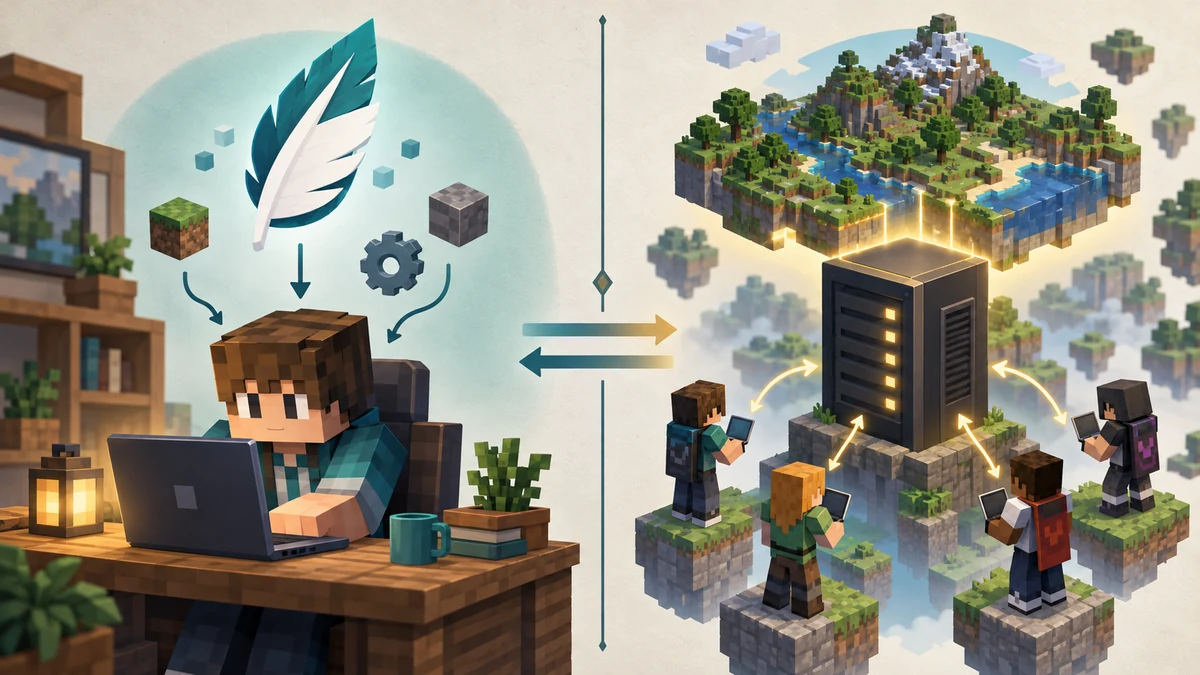
Can you host a server directly from your PC?
For a small group of friends, self-hosting from the same PC can be practical. Feather's public page says servers run from your PC and mentions a proxy network for protecting the host IP. Your machine still supplies CPU, memory, storage, upload bandwidth, and uptime, so a sleeping or overloaded computer can make friends time out.
The feature may avoid a monthly hosting bill, but hardware, electricity, backups, and troubleshooting still have a cost. Test with one or two trusted players before you invite a larger group, and do not describe a private self-hosted world as a 24/7 public service.

Client versus server: who owns each setting?
A simple client-versus-server boundary prevents most setup mistakes. A HUD, zoom, menu, or cosmetic preference is usually client-side. A world save, whitelist, permission, or server-side gameplay rule belongs to the host. Some mods need matching files on both sides, so read the current project instructions instead of copying a JAR by name alone.
A safe first setup workflow
The exact labels can change as Feather routes users toward Dawn, so use this as a controlled workflow rather than a promise about one screen. Start with the official-source download guide, create a clean profile, and keep a verified world backup before you test hosting.
Never share passwords, session tokens, world archives, or unknown executables while testing. Invite a small group, keep the host awake, and add one change at a time so a failed mod or profile can be rolled back.
Verify the source
Open the official Feather page and follow its current Dawn route when the page directs you there. Avoid mirrors that reuse the Feather name without a first-party link.
Record one profile
Write down the Minecraft version, loader, Java requirement, world folder, and the client profile you will use. Do not change five variables at once.
Back up the world
Copy the saves or server world directory to a separate location and verify that the copy opens before you experiment with mods, permissions, or migrations.
Start a private test
Launch the host with one or two trusted players, keep the computer awake, and note connection, memory, firewall, and log behavior before inviting a larger group.
Mods, profiles, and modded server boundaries
The query “how to make a modded Minecraft server with Feather Client” hides several checks: Minecraft version, loader, server build, client build, dependencies, and active profile. A client-only mod does not automatically work on the server, and some projects require matching files on both sides.
Use the mods guide and mods-folder guide to keep the active profile clear. Add one compatible group at a time, remove the newest change first when the test fails, and keep the world backup outside the client profile.
- Match Minecraft version before matching the mod name.
- Check whether a mod is client-only, server-only, or required on both sides.
- Keep server backups outside the active client profile.
- Add one compatible group at a time and preserve the launch log.
Permissions, IP privacy, and practical limits
Decide who can join, who can edit, and who can use operator commands. A client-only HUD or cosmetic setting cannot grant server permissions. For questions about Feather or Dawn permissions, start with the host's server-side controls and the current first-party route.
The official page's proxy description is useful context, not a guarantee of anonymity, uptime, moderation, or protection from every network problem. Choose a separate host when you need 24/7 uptime, managed backups, or a larger public community.
Troubleshooting a Feather-hosted world
Separate a launcher failure from a server connection failure. If the clean client never opens, use the launch troubleshooting guide. If friends cannot connect, check host uptime, the intended world, the Minecraft version, and the current invitation path before changing files.
For a missing world, stop and restore the verified backup. For a modded crash, remove the newest mod and verify loader and dependency versions. Do not download a replacement executable from a random result; use the safety checks guide for source and permission checks.
- Client will not launch: test the clean client and inspect the launcher log.
- Friends cannot connect: check host uptime, profile version, and the current invitation path.
- World is missing: stop, verify the backup, and avoid deleting the parent directory.
- Modded server crashes: remove the newest mod and verify loader and dependency versions.
Feather Client server hosting FAQ
Direct answers to the hosting, setup, permissions, and compatibility questions behind this topic.
Can I create a Minecraft server using Feather Client?
Yes, the official Feather homepage describes hosting a Minecraft server directly from your PC. It is a self-hosted workflow, so your computer, network, backups, and uptime still matter.
Is Feather Client server hosting free?
The official page describes the hosting feature as free, but self-hosting still uses your hardware, electricity, bandwidth, storage, and time. A paid host may be better for a persistent or larger server.
Is Feather Client a server or a launcher?
Feather Client is primarily the player-side launcher and client feature layer. Its hosting feature can run a world from your PC, while the server process owns the world, permissions, and server-side rules.
Does the current Dawn path change how I host a server?
The public Feather route now includes Dawn migration messaging, so check the first-party page for current labels and flow. Do not assume an old Feather screenshot or installer describes the current interface.
Can I use Feather Client mods on a hosted server?
Only when the exact Minecraft version, loader, dependency set, and client/server side requirements match. Client-only mods do not automatically work on a server, and some projects require matching files on both sides.
How do I find server permissions in Feather or Dawn?
Look at the host's server-side permission or operator controls. A HUD, cosmetic, or other client-only setting cannot grant server permissions, and random configuration downloads should not be treated as official.