
Install the pack in the profile you launch
To use Feather Client resource packs, first open the Minecraft Java profile that you intend to play. From the game's main menu, open Options, choose Resource Packs, and use Open Pack Folder. Put the pack's ZIP in that folder without extracting it, return to the pack screen, move it from Available to Selected, and confirm Done. The button opens the active game's folder, which is safer than guessing a shared directory when you have more than one client or profile.
Choose a pack whose creator lists support for your Minecraft version, and keep the download tied to the original project page. A resource pack changes assets such as textures, sounds, or interface artwork; it is not a Fabric mod, a shader, or a launcher installer. Feather Client resource packs are loaded by Minecraft's active profile, so a correct ZIP in the wrong instance can look as though the download failed.
Check the file type before moving it
Minecraft add-ons can look similar on a download page but use different loaders and folders. Identify the file's job before copying it into a profile.
| What you have | Usual destination | What to check | Do not confuse it with |
|---|---|---|---|
| Resource pack ZIP | resourcepacks | Minecraft version and pack notes | A code mod or installer |
| Fabric mod JAR | mods | Loader, game version, dependencies | A texture or sound pack |
| Shader pack ZIP | shaderpacks | Supported renderer and profile | A resource pack |
| World save | saves | Backup and world version | A pack or mod archive |
Choose a pack that matches the game profile
Choose a pack for the Minecraft Java profile you will launch, not just for the word Feather in a search result. Note that profile's game version and read the creator's support notes. Pack formats change between releases, so a broad version label may not be enough. If several files are offered, distinguish the Java archive from Bedrock content, previews, add-ons, and optional companion files.
Start with a small pack from a recognizable creator or project page. Check its release history, supported game versions, and included features. A pack may be outdated or made for another edition. Feather Client resource packs are third-party Minecraft content, not files supplied by the launcher publisher; the pack author describes its files and compatibility.
- Prefer the creator's project page or a known host over a mirror that hides the author.
- Read the release notes; do not run an EXE, script, or password-protected installer for a texture pack.
- Record the project, file, game version, and download date for later checks.
Check the ZIP before placing it
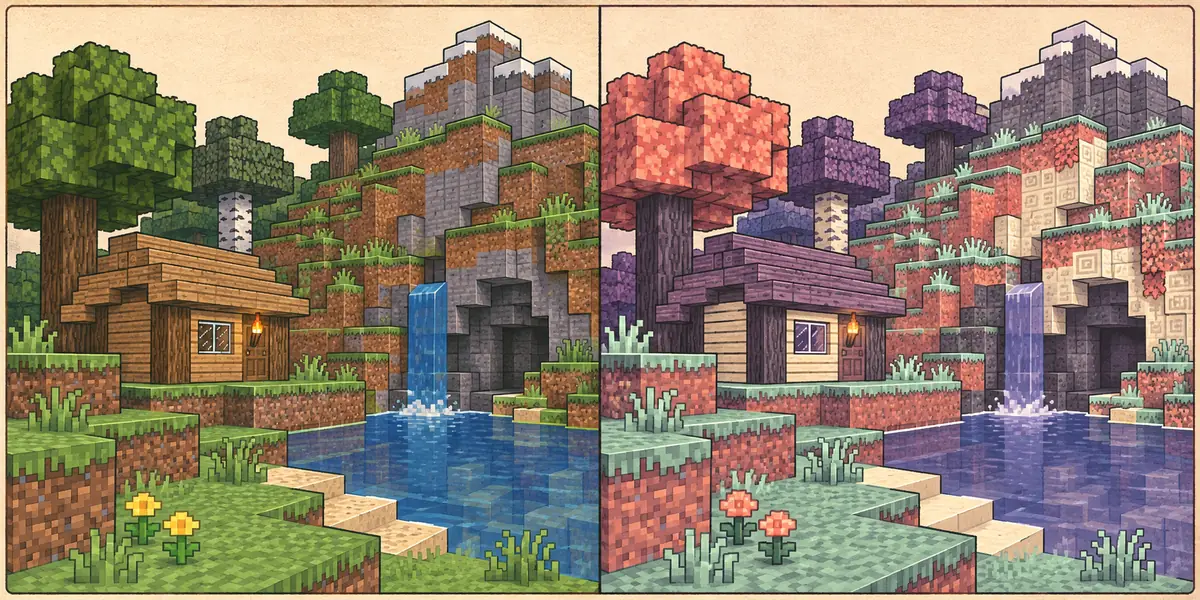
A Java resource pack is usually a ZIP that Minecraft can read directly. Keep it intact unless the author says otherwise. If you inspect it, check that pack metadata and assets sit at the archive's top level. Some downloads contain a second ZIP or an extra folder around the real pack; Minecraft may list the outer file but fail to load the nested content.
The metadata describes pack format compatibility, and supported values vary by Minecraft release. Do not edit it just to hide a warning. A warning can mean the pack targets another release; it does not prove the archive is unsafe or broken. If the Java file is unclear, reread the project's installation notes instead of trying every button.
Confirm the filename
Choose the archive described as the Java resource pack, not every ZIP on the project page.
Inspect the layout
Check that metadata and assets are not buried in another folder or ZIP.
Keep a copy
Store the original outside the game folder until the pack loads, so you can roll back.
Open the folder for the active Feather Client profile
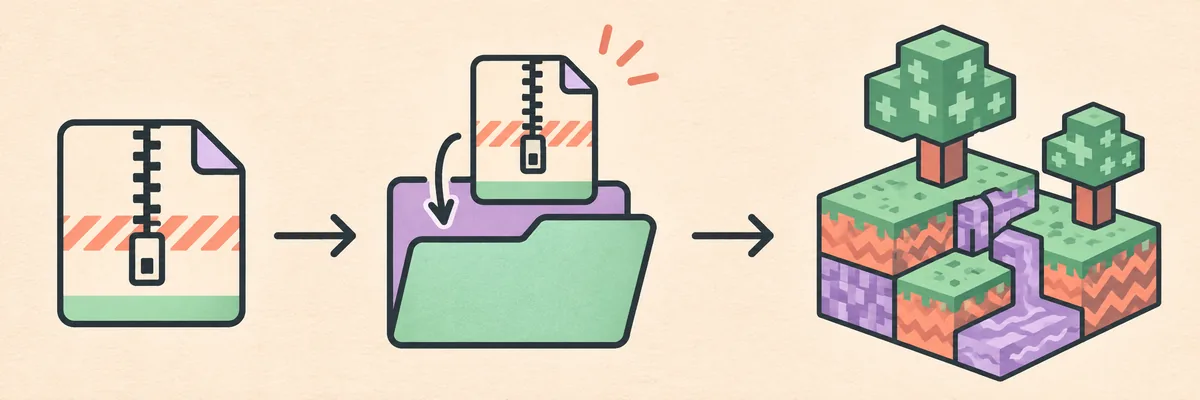
Launch the profile you plan to play, then open Options and Resource Packs from Minecraft's main menu. Choose Open Pack Folder. It points to the running instance and avoids guessing a default path when profiles are separate. If Feather Client or Dawn offers a profile-folder shortcut, use the one for the profile on screen and confirm its name before copying.
Copy the ZIP into resourcepacks, not mods, shaderpacks, saves, or the launcher installation directory. Keep it zipped. Return to the game after copying. With multiple profiles, open the folder from each one; separate game directories may need separate copies.
- Use the running profile's folder, not a path copied from another computer.
- Name backups with the pack and game version.
- If the folder will not open, check the active instance path before changing files.
Enable the pack and set its priority
Return to Resource Packs and look under Available. Select the ZIP to move it into Selected. Order matters when packs replace the same texture: the higher pack wins for files it contains, while other assets can come from lower packs or the game's defaults. Move a pack up only when you want it to override matching files.
Choose Done and let Minecraft reload. If nothing changes, test an area where the texture should be visible. Change one layer at a time so you can trace a visual problem. A pack may replace only some assets, so unchanged blocks or menus do not necessarily mean it failed.
Select it
A ZIP in the folder is not active until you enable it in Resource Packs.
Set priority
Move it above another pack only when its matching assets should win.
Reload
Choose Done and inspect a known texture before changing anything else.
Fix a missing pack or unexpected visuals
If the pack is absent from Available, check the active profile folder, confirm the file is still a ZIP, and look for nested content. Read the creator's Java and version notes, then reopen the screen. Testing one known-good pack in the same directory helps separate a path issue from faulty packaging without reinstalling the client.
If textures are missing, a warning appears, or the wrong style wins, disable other packs and test this one alone. Check its order and any creator notes about companion files or game releases. A high-resolution pack can strain graphics hardware; try a lighter release or default resources before changing launcher settings. Resource packs do not fix code-mod crashes.
- Missing: check the active path, nested ZIPs, and Java file.
- Warning: compare the game release with the creator's format notes.
- Wrong texture: test the pack alone and check its order.
- Slow rendering: disable it or try a lighter asset set before changing settings.
Keep the test reversible and protect your profile
A resource pack changes presentation in one client profile. It does not grant paid content, unlock server cosmetics, alter a world save by itself, or force other players to use it. A multiplayer server may offer its own server pack prompt; review an unexpected prompt and the server you joined rather than assuming it came from Feather Client.
Back up worlds before reorganizing folders. Record the project's release name, keep the original ZIP outside the active directory, and disable the pack before deleting its file. Never run an executable or script bundled with a visual pack. This guide does not host, scan, or certify third-party downloads; check the author's release information yourself.
- Back up worlds before changing profiles or nearby files.
- Disable the pack, then remove its ZIP from
resourcepacks. - Never share passwords, session tokens, or launcher databases.
Feather Client Resource Packs FAQ
Quick answers about the active profile, ZIP files, pack order, and common loading problems.
Where do I put Feather Client resource packs?
Launch the Minecraft profile you use, open Options, then Resource Packs, and choose Open Pack Folder. Put the intact Java resource-pack ZIP in the opened resourcepacks directory, then return to the screen and select it.
Do I need to unzip a Minecraft Java resource pack?
Usually no. Keep the ZIP intact unless the project author explicitly instructs you otherwise. If Minecraft cannot read it, check whether the actual pack is nested inside a second ZIP or an extra folder.
Why is my resource pack not showing in Feather Client?
The most common checks are the active profile folder, the file still being a ZIP, Java Edition compatibility, and an extra wrapper folder. Open Pack Folder from the profile you actually launched, then refresh the Resource Packs screen.
Can I put a resource pack in the mods folder?
No. Resource packs belong in resourcepacks. The mods folder is for compatible code-mod JARs, while shader packs use a different folder and may need supported rendering software.
Will every pack work with every Minecraft version?
No. Pack metadata and included assets may target particular game releases. Read the creator's supported-version notes and treat an in-game compatibility warning as a reason to check those notes, not as a guarantee that an edit will fix the pack.